





Get LATTICE Ready for Battle Passes and Store Collectibles
Planning to purchase a Marvel Rivals Battle Pass or set aside a budget for cosmetic items in the in-game store? Start by comparing the available currency and bundle options. LATTICE is the game's premium currency. It can be used to purchase Battle Passes and exchanged for UNITS at a 1:1 ratio, which can then be used to buy eligible store items. Hero abilities, character roles, and team coordination are also central to hero shooters such as Apex Legends, where combat revolves around distinct characters and squad-based encounters.
TRADEE offers a range of Marvel Rivals LATTICE top-ups and bundle products. If you prefer to manage your in-game spending yourself, compare the available LATTICE top-up options. If you already have a particular purchase in mind, you can go straight to the bundles listed on the product page. Players who enjoy tactical shooters and competitive matches can also browse VALORANT top-up products on TRADEE to add points for their in-game needs. For fast-paced character-based combat, Brawl Stars top-ups are another option.
Available product options, prices, and applicable offers may vary. TRADEE displays the relevant details on each product page and at checkout for you to review. Before paying, check your selected option and the final amount to avoid choosing the wrong denomination or confusing different product types.
Supported Platform and Server Information
| Item | Supported Details |
|---|---|
| Platform | PC (Steam) |
| Server | Global Server |
| Required Information | Marvel Rivals User UID |
| Top-Up Method | Direct top-up using your User UID. No game account password is required. |
This product is for the Global Server on PC (Steam). It does not cover every platform, and this product page currently does not offer top-ups for PlayStation or Xbox.
You will need to provide the correct in-game User UID when placing an order. You do not need to submit your account password or login credentials. We recommend copying your UID directly from your in-game profile to avoid typing errors.
How to Find Your User UID in Marvel Rivals
-
Open the game. Sign in to Marvel Rivals with your PC (Steam) account and enter the main menu.
-
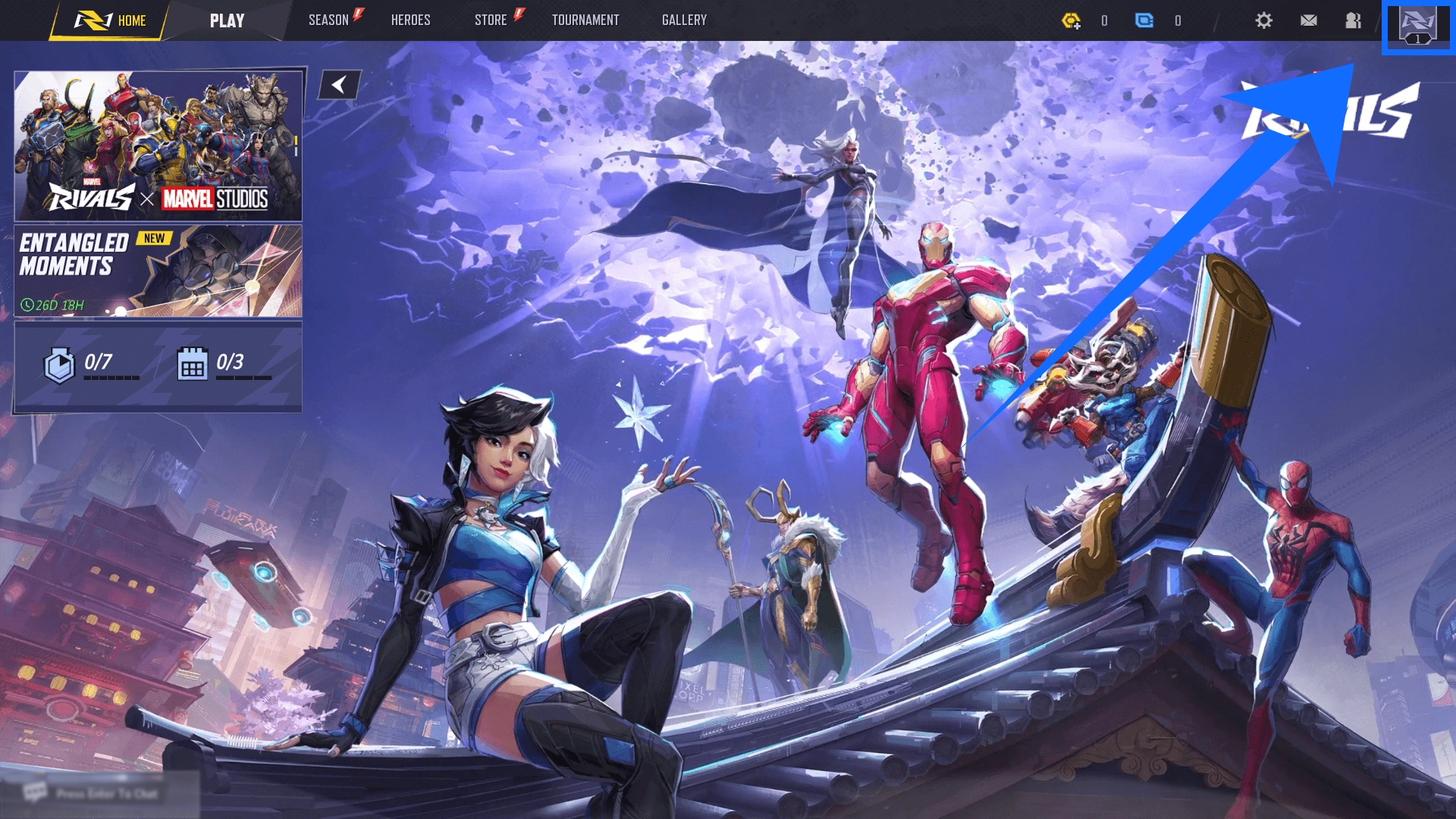
Open your profile. Click your avatar in the upper-right corner of the main menu to access your profile.
-
Check Profile Overview. Find the User UID displayed on the right side of your profile overview, then enter that identifier in the order details.
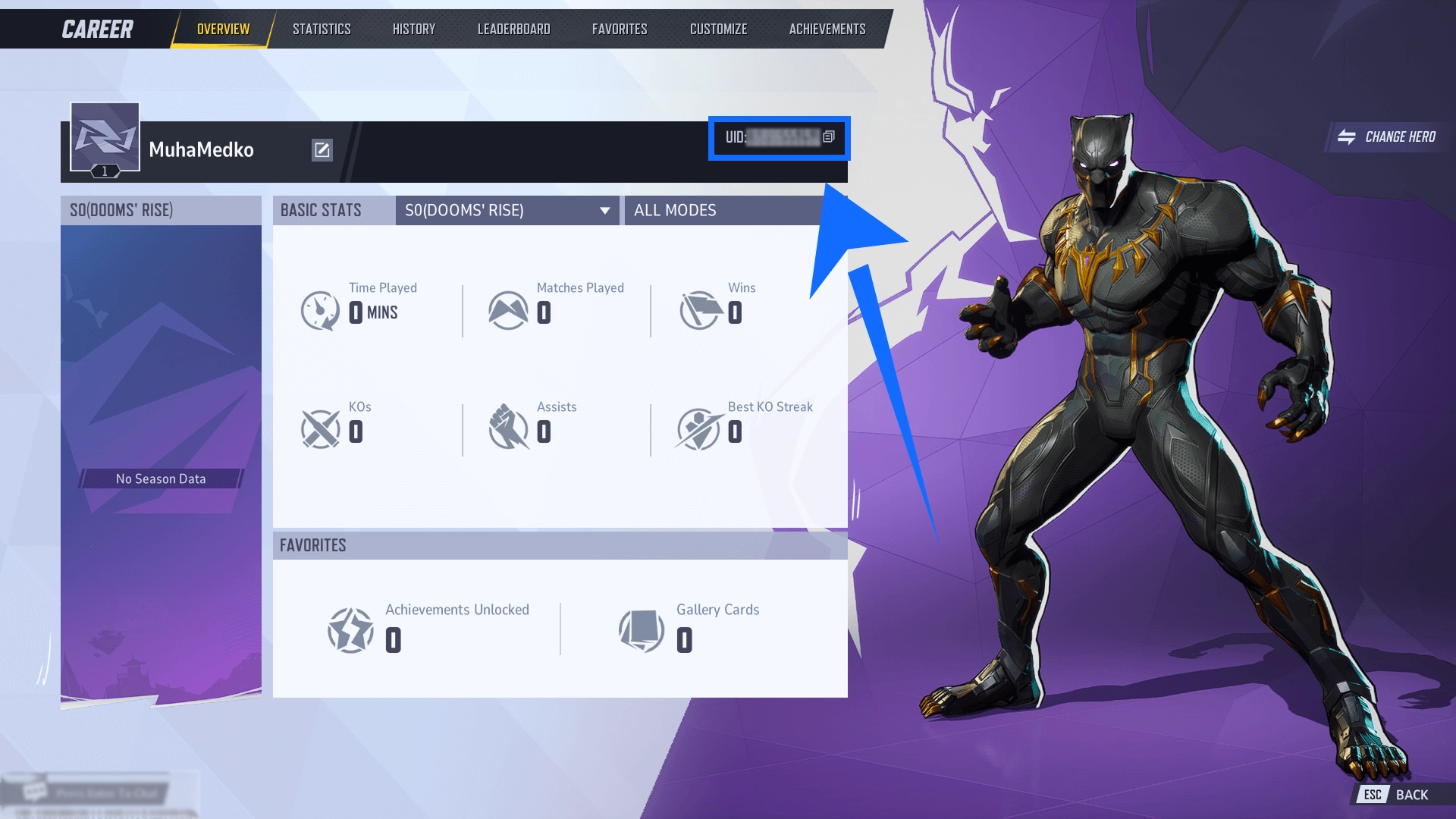
If the game provides a copy button for your UID, use it rather than typing the number manually. Before submitting your order, check the full number and make sure you have not entered your Steam display name or another account identifier by mistake.
How to Complete Your Order
- Choose a LATTICE denomination or bundle
Visit the Marvel Rivals product page on TRADEE and select the LATTICE top-up option or bundle you need. Check the product type, denomination, current price, and any applicable offers shown before checkout.
- Enter and verify your User UID
Submit your in-game User UID in the order field and make sure it matches your account. Also confirm that your platform is PC (Steam) and that the listed server information matches your game account.
- Pay and wait for order processing
After checking the product, UID, and final amount, choose one of the payment methods available at checkout. Your order will be processed according to the selected product. You can check the relevant order information for progress updates.
- Check the result in-game
Once the LATTICE top-up is complete, log in to the corresponding game account and check your LATTICE balance. For bundles, follow the individual product instructions to verify the included content. Once everything matches your order, you can use it according to your plans in the game.
A More Convenient LATTICE Top-Up Experience, from Selection to Payment
When purchasing Marvel Rivals LATTICE, it is important to check not only the denomination but also the final payment amount and order process. TRADEE displays product prices and applicable offers clearly, making it easier to compare options and choose what fits your budget. The straightforward ordering process lets you select a product, enter your User UID, and complete payment without unnecessary steps.
TRADEE provides a secure transaction and checkout environment, with payment methods such as PayPal and Visa available through the checkout page. Before placing an order, review the product details, account identifier, and final amount to keep the payment and order information clear. Once submitted, your order will be processed according to the relevant product procedure. We focus on efficient handling, although the actual completion time may vary depending on the order. Players who also collect or trade shooter equipment and cosmetic items may want to explore Team Fortress 2 items as another category of gaming products.
If you have questions about product selection, payment, or order progress, the TRADEE 24/7 customer support team can help follow up. Thank you for your trust and support. We value every order and every service experience, and will continue working to provide reliable and efficient assistance so you can shop for game products with greater confidence and convenience.
Marvel Rivals LATTICE Top-Up FAQ
Will purchasing LATTICE automatically grant me a specific store costume?
No. LATTICE is an in-game currency, not a specific costume or individual store item. After purchasing LATTICE, you still need to use it through the in-game store. If you want a particular bundle, select the corresponding bundle on the product page and check its contents before ordering.
Will all Battle Pass rewards unlock immediately after I top up LATTICE?
No. Receiving LATTICE, purchasing a Battle Pass, and unlocking or claiming Battle Pass rewards are separate actions. Completing a top-up does not mean that you have purchased the Battle Pass or unlocked all its rewards. You will still need to follow the in-game Battle Pass rules.
What should I do if my payment is complete but my in-game LATTICE balance has not updated?
First, make sure that the game account you are currently using matches the User UID submitted with your order. Then re-enter the game and check your balance again. If it still has not updated, keep your order number and related order details, then contact TRADEE customer support for assistance. Avoid placing another order before the status of the original one has been checked, as this could result in an additional purchase.