







Top Up Wuthering Waves on TRADEE
Purchase Lunites or a Lunite Subscription for Wuthering Waves on TRADEE with either UID Top-up or Login Top-up. Choose your product, check the account details and server receiving the top-up, review the current price, and complete your payment.
Wuthering Waves Lunites and Lunite Subscription
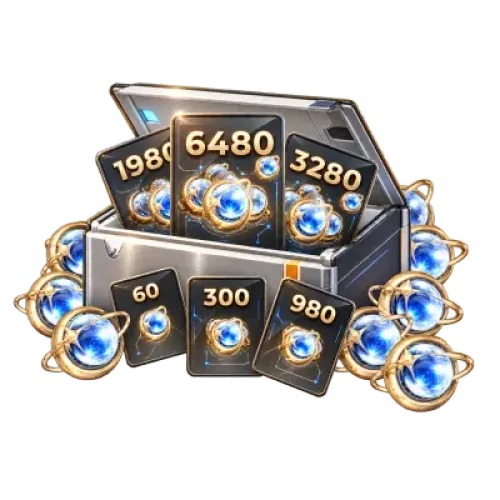
Lunites are the premium currency in Wuthering Waves. They can be used to purchase certain in-game supply bundles or converted into Astrites. TRADEE offers both Lunites and the Lunite Subscription, which have different purchase methods and benefits.
Lunites
Choose the Lunite package you need, and the purchased Lunites will be added to the Wuthering Waves account you specify. You can keep them in your account and convert them into Astrites when needed, or use them to purchase in-game products that accept Lunites.
Lunite Subscription
Purchasing the Lunite Subscription grants 300 Lunites, plus an additional 90 Astrites each day for 30 days. It is a different top-up product from a one-time Lunite purchase, so make sure you select the correct option before placing your order.
Before ordering, check the product type, Lunite package, current TRADEE price, and any promotion displayed on the product page.
Why Top Up Wuthering Waves on TRADEE?
Review the Lunite package, promotions, and final price
After selecting Lunites or the Lunite Subscription, you can review the product details, current TRADEE price, displayed promotions, and final amount due before payment.
Buying this Lunite package for the first time? Check the first-purchase bonus
Each Lunite package in Wuthering Waves has its own first-purchase bonus status. Your first purchase of a particular package grants the additional Lunites currently offered for that tier. Once the first-purchase bonus has been used, later purchases receive bonus amounts according to the game's current rules. Check the first-purchase status of the account receiving the top-up before placing your order.
UID Top-up: Check your Wuthering Waves UID and server
For UID Top-up, enter the Wuthering Waves UID of the account that should receive the purchase, then select the correct server from Asia, America, Europe, HK/MO/TW, or SEA. You do not need to provide your game account password for UID Top-up.
Complete Login Top-up through the order process
For Login Top-up, provide the required login details on the TRADEE checkout page and complete the account verification process. Submit login and verification information only through the order process.
Looking to top up other games as well? Browse TRADEE's Genshin Impact top-ups and Zenless Zone Zero top-ups. Account details and top-up information are separate for each game, so follow the instructions on the relevant product page.
Wuthering Waves Top-up Methods
UID Top-up
Enter the Wuthering Waves UID that should receive the top-up and select the correct server: Asia, America, Europe, HK/MO/TW, or SEA. No game account password is required.
Login Top-up
Enter the login details requested on the TRADEE order page and complete any account verification required for the order before the top-up is processed.
Wuthering Waves Top-up Information
| Game | Wuthering Waves |
|---|---|
| Main premium currency | Lunite |
| Related currency | Astrite |
| Main products | Lunites / Lunite Subscription |
| Top-up methods | UID Top-up / Login Top-up |
| Required for UID Top-up | Wuthering Waves UID + corresponding server |
| Supported UID Top-up servers | Asia / America / Europe / HK/MO/TW / SEA |
| Required for Login Top-up | Login details and account verification information requested at checkout |
| Is a password required for UID Top-up? | No |
How to Find Your Wuthering Waves UID
Your UID identifies the game account that should receive the top-up. Copy it directly from the game. Do not enter your character name, login email, or a UID from another game instead.
- Open Wuthering Waves and log in to the account you want to top up.
- Enter the game profile that should receive the Lunites.
- Find your UID on the game screen or in your profile.
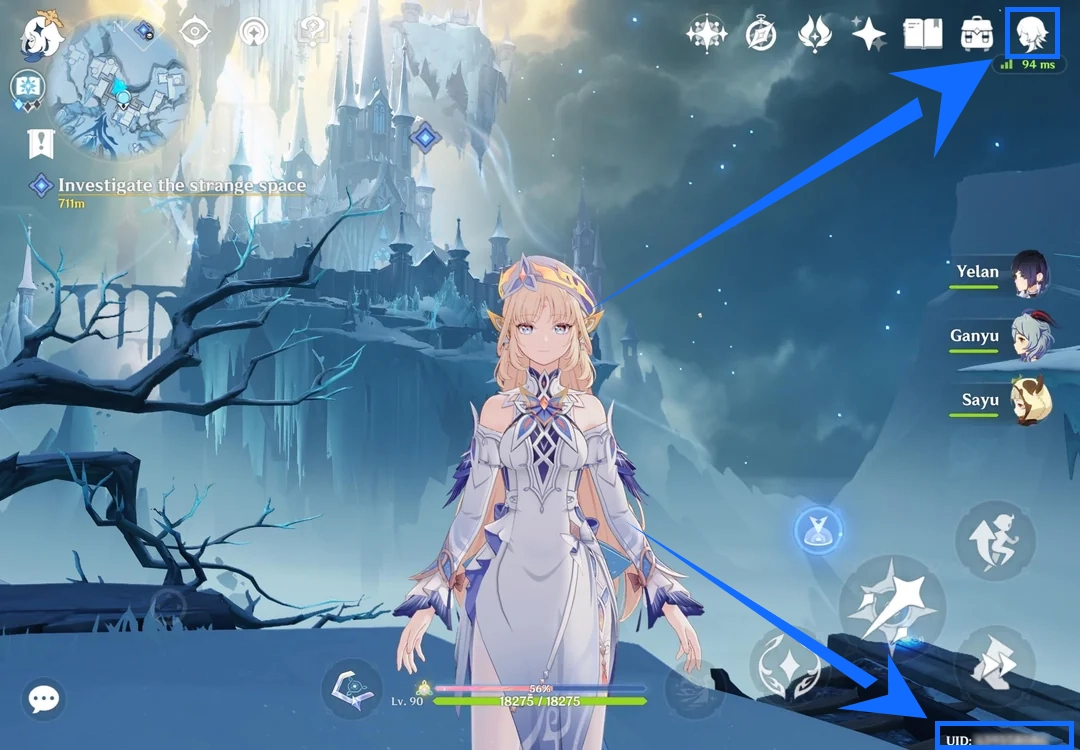
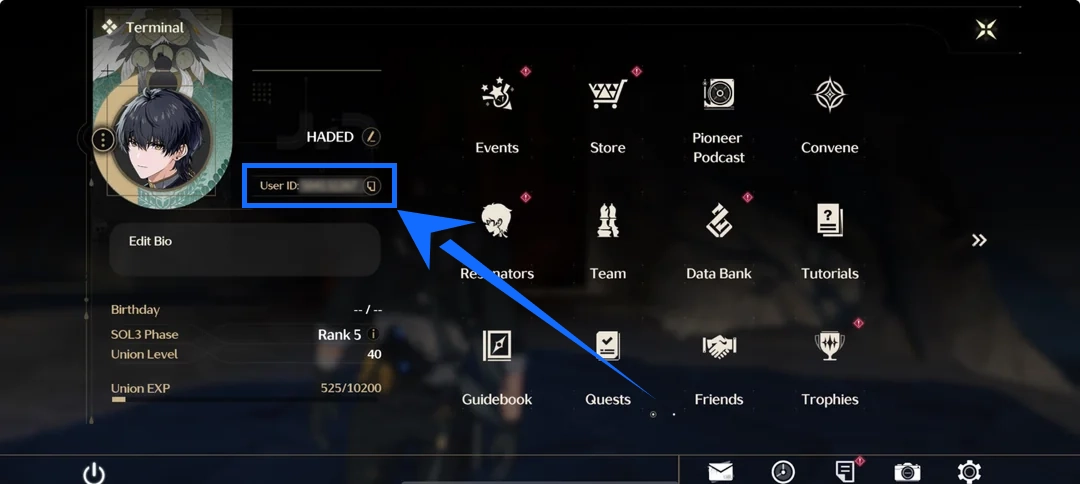
- Copy the complete UID and enter it on the TRADEE order page.
- Select the server that matches your game account: Asia, America, Europe, HK/MO/TW, or SEA.
How to Complete a UID Top-up
- Select UID Top-up.
- Choose the Lunite package or Lunite Subscription you want to purchase.
- Enter the Wuthering Waves UID that should receive the top-up.
- Select the matching server from Asia, America, Europe, HK/MO/TW, or SEA.
- Double-check your UID, server, product, price, and displayed promotions.
- Choose a payment method and click Buy Now.
- Keep your TRADEE order number after payment.
- Once the order is complete, log in to Wuthering Waves and check whether your Lunites or purchased product has been updated.
You do not need to provide your Wuthering Waves game account password for UID Top-up.
How to Complete a Login Top-up
- Select Login Top-up.
- Choose the Lunites or another available product you want to purchase.
- Enter the game account login details requested on the TRADEE checkout page.
- Complete the required account verification by following the order instructions.
- Check the game account receiving the top-up, the selected product, and the final price.
- Choose a payment method and click Buy Now.
- Keep your order number while the order is being processed.
- After completion, log in to Wuthering Waves and confirm that the product has arrived.
Submit login and verification information only through the TRADEE order process. Do not share it in public comments, social media replies, or unofficial contact channels.
How to Check Your Top-up After the Order Is Completed
Once your TRADEE order is complete, log in to the same Wuthering Waves account and server used when placing the order. Check whether your Lunite balance or Lunite Subscription has been updated. Players who enjoy open-world exploration and martial arts themes may also be interested in Where Winds Meet top-ups. For another urban fantasy action game, take a look at Neverness to Everness top-ups.
If your order is marked as completed but the product has not arrived, first check that you are logged in to the correct game account and server. Keep your TRADEE order number and contact customer support for assistance.
Wuthering Waves Top-up FAQs
What should I do if I select the wrong Wuthering Waves server?
If you notice that you selected the wrong server after submitting your order, do not place another order. Contact TRADEE customer support as soon as possible and provide your order number. Whether the server can still be changed depends on the current processing status of your order.
What should I do if my Lunites have not arrived after the order is completed?
First, make sure you are logged in to the game account and server linked to the UID entered when placing the order. If your Lunites or Lunite Subscription still have not been updated, keep your TRADEE order number and contact customer support for verification.