





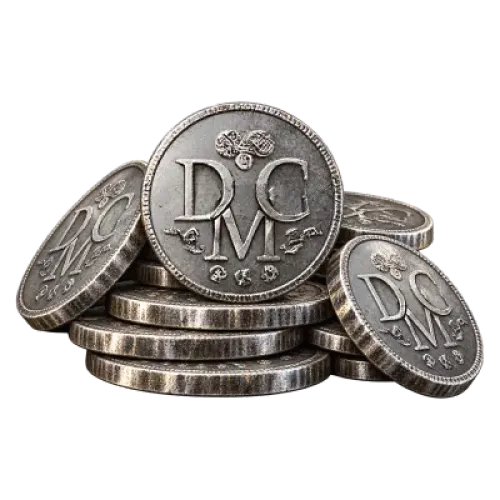
Buy Skull and Bones Silver to Fund Your Voyages and Ship Upgrades
Skull and Bones is an open-world pirate adventure centered on sailing and naval combat. Take on the role of a pirate captain, explore the vast Indian Ocean, battle rival factions, and build your influence by completing contracts, plundering cargo, and gathering resources. From purchasing ship weapons and crafting equipment to stocking up on supplies, Silver is an essential currency for developing your fleet and supporting everyday activities.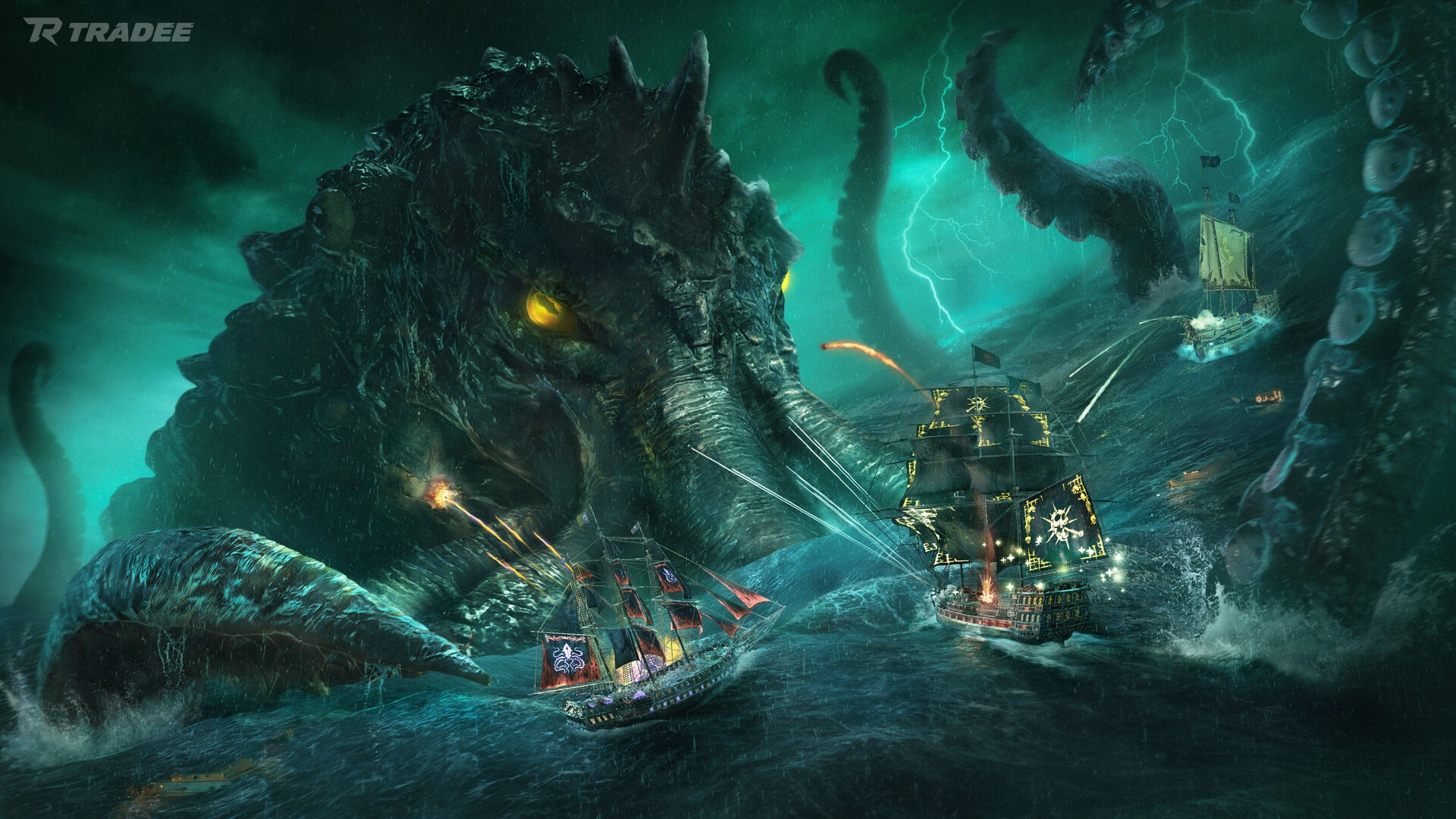
TRADEE offers Skull and Bones Silver trading services, with different amounts available to suit your needs. Add funds for fleet development, equipment upgrades, and everyday purchases without spending as much time farming Silver.
Silver is a commonly used in-game currency. You can spend it on goods and resources from vendors, certain blueprints, fast travel fees, and cosmetic items that accept Silver. This product is for regular in-game Silver, not the premium currency Gold, and does not include any specific weapons, ships, or equipment.
Before purchasing, compare the total price and unit cost of each amount, and check any current TRADEE offers to find an option that fits your budget.
This product supports PC, PS5, and Xbox Series X|S. Select the platform you actually play on, then check the Silver amount and final price before completing your purchase.
Meet at Sainte-Anne for an In-Game Trade
Skull and Bones Silver is delivered through an in-game player-to-player trade. It is not a top-up through the official store, and you do not need to hand over your account for someone else to operate.
You must be online and take part in the transaction yourself. TRADEE will use the Ubisoft ID submitted with your order to arrange a friend invitation. Once both parties have joined the group, you will meet at Sainte-Anne.
Please note that you must leave your ship and stand on the dock after arriving at Sainte-Anne. Face-to-face trading requires your character to be on land so you can interact with the delivery staff. Waiting aboard your ship near the dock is not sufficient.
Check the Silver amount shown in the trade window before confirming the transaction. If your order is delivered in multiple trades, verify each amount and add them together until the full order quantity has been received. Accepting a friend invitation or reaching the dock does not mean delivery is complete. Always check the Silver actually received.
Since you will operate your own character during the transaction, you do not need to provide your Ubisoft account password or login verification code. Only the information required to arrange the friend invitation and in-game trade is needed. Follow the order instructions to receive your Silver.
A Clearer Way to Arrange Your Silver Purchase and Delivery
Silver trading requires both parties to be online at the same time. When choosing a product, check more than just the amount and price: make sure the platform, recipient details, and meeting arrangements are correct. TRADEE brings product selection, payment, and delivery coordination together in one purchase process.
Choose a Silver Amount That Fits Your Budget
Your Silver needs will vary depending on your plans, whether you are buying everyday supplies or preparing ships and equipment for a major upgrade. TRADEE offers different amounts so you can choose according to your current goals and compare available offers and order totals. The final price and discount are based on what is shown at checkout.
Coordinate the Trade Around Your Playtime
Unlike automatic top-ups, Silver trading requires you and the delivery staff to meet in the game. TRADEE will arrange the friend invitation and trade after your payment and recipient details have been confirmed. The actual completion time may vary depending on the order quantity, both parties' availability, and the game's connection status.
Multiple Payment Options and 24/7 Customer Support
TRADEE supports multiple payment methods, including PayPal and the credit card options available at checkout. Available methods may vary by region and are subject to what is displayed on the checkout page.
If you do not receive a friend invitation, cannot find the delivery staff, or receive a different amount of Silver from what was ordered, contact TRADEE 24/7 customer support. Provide your order number and a description of the issue so the team can check the delivery status and help with the next steps.
How to Buy Skull and Bones Silver: From Your Ubisoft ID to Dockside Delivery
Before placing your order, prepare your correct Ubisoft ID and make sure you can log in to the game, accept friend invitations, and take part in a face-to-face trade.
-
Choose Your Platform and Silver Amount
Visit the Skull and Bones Silver product page on TRADEE. Select PC, PS5, or Xbox Series X|S, then choose the amount of Silver you need. Before paying, check the amount, quantity, applicable offers, and order total to avoid selecting the wrong product.
-
Submit Your Ubisoft ID and Contact Details
Enter the Ubisoft ID used to identify your in-game account, along with any required contact information. Your Ubisoft ID is used to find your player profile and send a friend invitation. Check the spelling carefully and do not substitute your console username.
If checkout asks for your name, email address, or phone number, provide valid details so you can receive order notifications. This service uses a player-assisted in-game trade, so you do not need to submit your Ubisoft account password or login verification code.
-
Complete Payment and Accept the Friend and Group Invitations
Complete your order using one of the payment methods available at checkout. Keep your order number, then log in to Skull and Bones according to the delivery arrangements.
Watch for notifications from the game or Ubisoft friends system. Confirm the delivery staff's identity, accept the friend invitation, and join the designated group. If no invitation arrives, check that your Ubisoft ID is correct and contact customer support through your order.
-
Meet at Sainte-Anne and Complete the Silver Trade
After joining the group with the delivery staff, travel to the designated meeting point at Sainte-Anne. Leave your ship and meet the delivery staff on the dock.
Once you are close to each other, use the in-game player interaction feature to initiate or accept the trade. Check the Silver amount in the trade window before confirming receipt. Do not leave the meeting area until the trade is complete.
-
Check Your Silver Balance and Confirm the Order
After the trade, check your captain's Silver balance and compare it with the amount you had before the transaction to verify how much you received.
If delivery takes place in multiple trades, add up each amount received and compare the total with your order. If a trade is interrupted or the amount is incorrect, keep the relevant records and contact TRADEE customer support. Confirm the order only after checking that the full amount has arrived.
Skull and Bones Silver: Frequently Asked Questions
Can I unlock high-tier ships and weapons immediately after buying Silver?
Not necessarily. Silver can be used to purchase certain blueprints, materials, and goods, but high-tier ships and weapons may also require a specific Infamy rank, the relevant blueprint, or crafting materials. Silver provides the funds, but it does not bypass these unlock requirements.
Can Silver replace Gold sold in the in-game store?
No. Silver is mainly used for regular in-game trading, resource purchases, and certain cosmetic items. Gold is a separate in-game currency used for specific store products. Items that require Gold cannot be purchased directly with the Silver sold on this page.
What if I cannot join the same game world as the delivery staff?
First, make sure you have added each other as friends and check the game's cross-platform and group settings. If you still cannot join the same game world, keep a screenshot of the issue and contact TRADEE with your order number so the team can check the delivery arrangements.
What should I do if the trade window shows the wrong amount of Silver?
Do not confirm the trade yet. Check the amount for that transaction and the cumulative total with the delivery staff. If anything is still unclear, keep a record of the trade and contact TRADEE customer support. Complete the transaction only after the amount has been verified.