






Pet Simulator 99 Item Guide: From Popular Pets to More In-Game Items
Collecting pets is one of the main attractions of Pet Simulator 99. Every player has different collection goals: some are looking for specific Huge pets, while others adjust their wish lists as they progress through the game. TRADEE offers Pet Simulator 99 items, making it easier to search for specific products by name instead of limiting your choices to a single pet type.
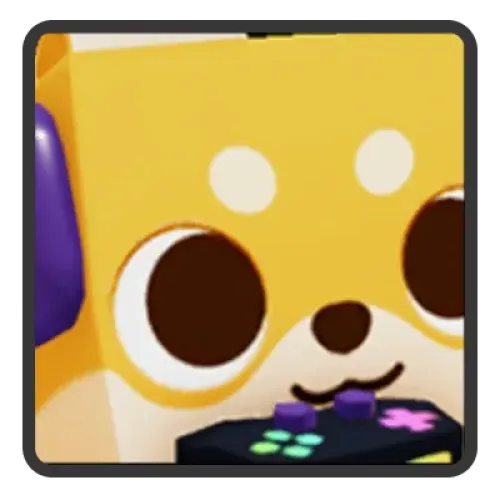
The current Main Server catalog includes Huge Reindeer Axolotl and Huge Gamer Shiba, both listed under Pets. Other types of in-game items may become available as the catalog is updated. Before ordering, check the listed item name, specifications, and price, then choose according to your collection goals and budget.
Which Pet Simulator 99 Items Are Available?
The current selection mainly features pets, making it suitable for players who already have a specific collection goal or are looking for a particular pet. Use the category and sorting options on the product page to browse the catalog, then check each item's price and available quantity.
| Item Name | Category | Who It's For |
|---|---|---|
| Huge Reindeer Axolotl | Pets | For collectors looking for this specific Huge pet. |
| Huge Gamer Shiba | Pets | For players who want to add this particular pet to their collection. |
You can sort items by name or price to compare the available options more easily. If you already know which pet you want, check its full name first and then review the matching price. This helps avoid confusing similarly named items or different variants.
This page uses in-game items as the main product category, with Pets as the currently listed subcategory. If more item types are added later, choose them according to their actual product descriptions. Unlisted pet variants, extra items, and bundle contents are not automatically included just because they belong to the same general category.
Check Pet Names and Item Specifications Before Buying
In Pet Simulator 99, pets with similar names are not necessarily the same item. If you have a specific collection goal, check the full pet name before purchasing and make sure the product page clearly lists the variant or other specifications you want.
- Confirm the exact pet: Use the full English name shown on the product page. Do not identify an item based only on its appearance or part of its name.
- Check variants and attributes: If you want a Golden, Rainbow, or another special variant, confirm that the product options explicitly include it. Do not assume every variant is available.
- Stay within your budget: Compare the displayed prices and choose items that fit your collection plans. There is no need to buy extra items you do not want.
TRADEE focuses on clear product information and order handling, so you can review your selected items before confirming the payment amount and order details. Available payment options are shown at checkout and may include PayPal and credit card payments such as Visa. If you need help choosing an item, making a payment, or checking an order, 24/7 customer support is available.
Check the platform rules before purchasing: TRADEE is not an official Roblox or BIG Games store. Review the applicable Roblox terms and community guidelines before placing an order, and assess the relevant risks yourself.
From Choosing an Item to Receiving It In-Game
Pet Simulator 99 items are in-game products. They are not Robux top-ups or character-boosting services. After choosing an item, provide the required order details and follow the delivery instructions.
-
Choose the Main Server and Your Item
Open the Pet Simulator 99 item page, select Main Server, and find the pet you want from the currently available listings. Check the full item name, quantity, current price, and total order amount before proceeding to checkout.
-
Enter Your Order Details and Complete Payment
Provide the information requested at checkout. If your order requires a Roblox username, enter the correct account identifier to avoid issues with delivery arrangements. An account identifier is different from login credentials, so do not submit your password or login verification code as general delivery information.
-
Follow the Delivery Instructions and Check Your Items
After payment, follow the instructions provided for your order. Once delivery is complete, open Pet Simulator 99 and check your pet inventory. Confirm that the pet name and quantity match your order. If an item is missing or there is a delivery issue, keep your order number and relevant details so TRADEE customer support can help review the case.