




MapleStory M Top-Up: Crystals, Packages, and Version-Specific Options
Looking to get a pet from the Crystal Shop, give your character a new look, or pick up a package that supports character progression? MapleStory M offers different paid currencies and items. Understanding what each one is used for before purchasing helps you spend your budget on what you actually need.
TRADEE offers top-up services for both the Global and Taiwan versions of MapleStory M. The Global version supports UID top-ups and Login Top-Ups, while the Taiwan version uses Login Top-Up. Choose the method that matches your game version and purchase, then review the listed price and any applicable offers before paying.
Where to Find the Four Details Required for a UID Top-Up
A UID top-up requires your Member Code, Region, World, and Character Name. The Member Code identifies your account, while the Character Name identifies the in-game character. Make sure all four details match the character that should receive the purchase.
- Log in to the account that will receive the purchase
Open MapleStory M and log in to the account you want to top up.
- Open the account settings
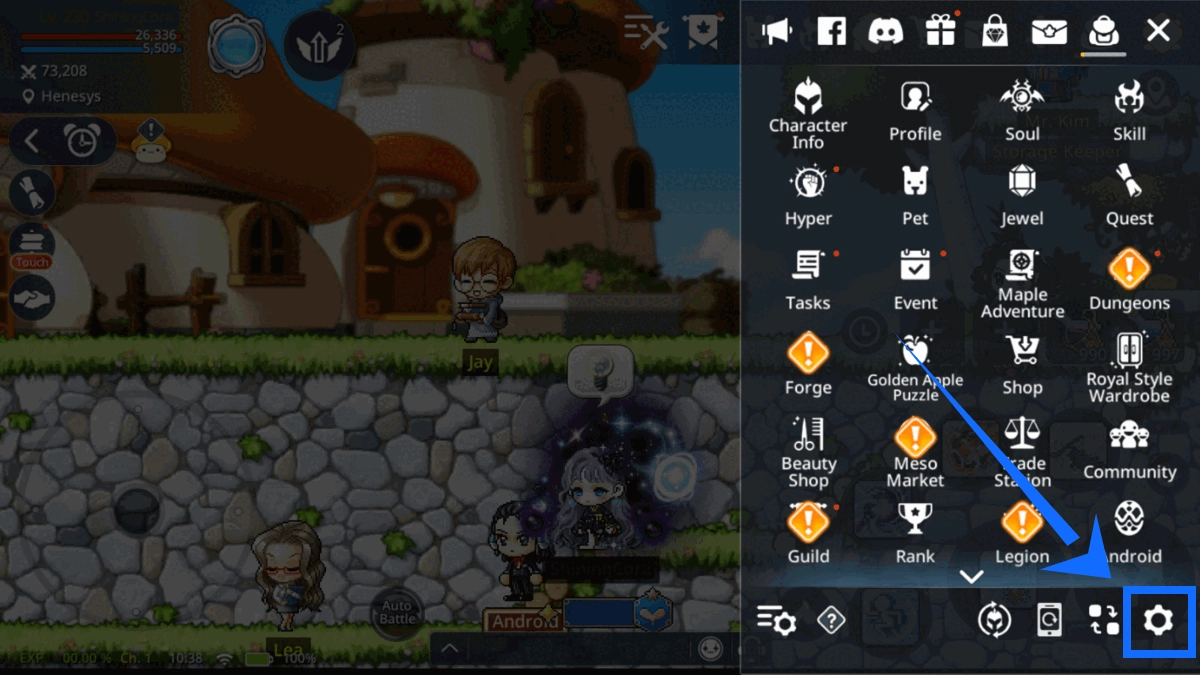
Tap the menu in the upper-right corner of the game screen, then open the settings icon in the lower-right corner and go to the Account page.
- Find your Member Code and Region
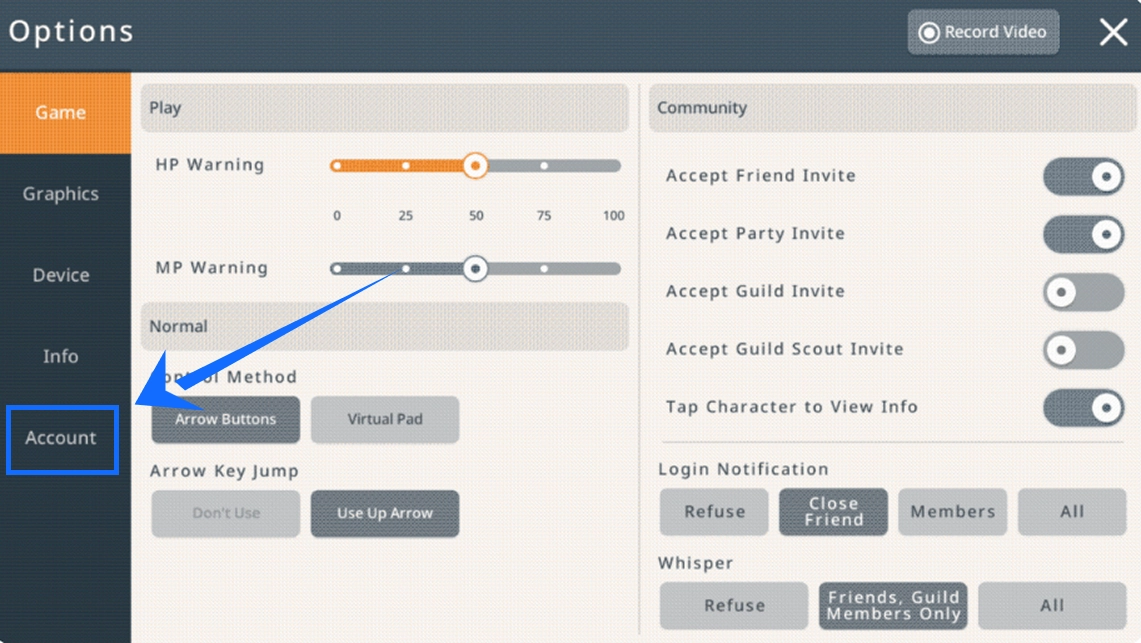
Locate Member Code and Region in your account information and note down the complete details.
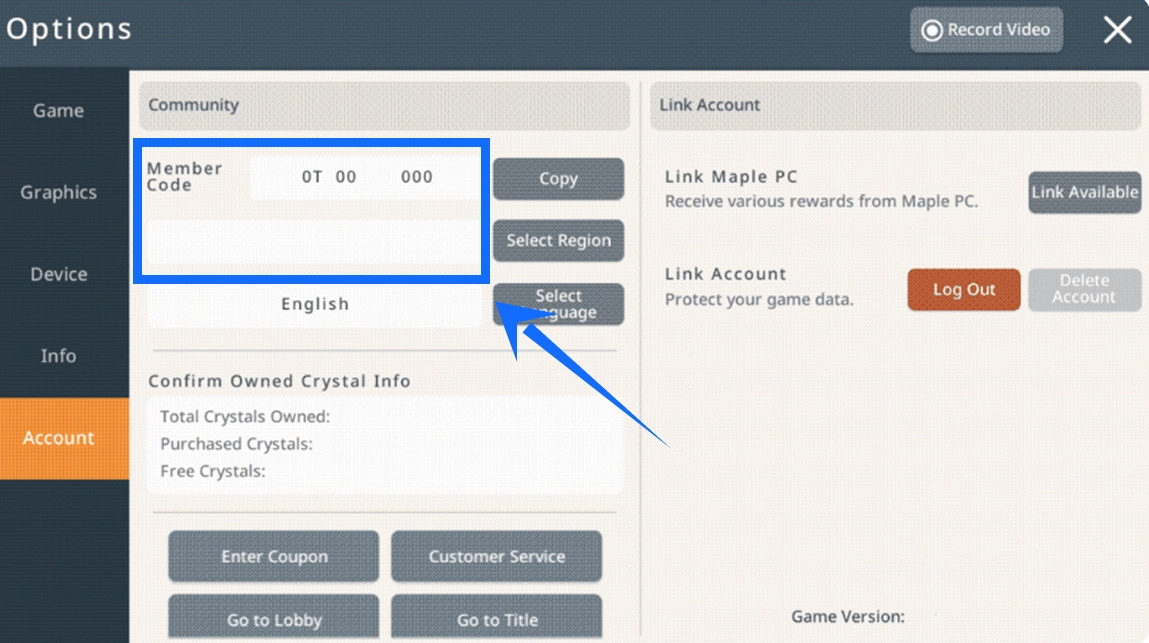
- Confirm your World and Character Name
Return to the game and open your character information to check your World and Character Name. If your account has multiple characters, enter the details of the character that should receive the purchase.
Copying your Member Code and Character Name directly is recommended to avoid errors from manual entry.
Choose the Right Game Version and Shop with TRADEE
Whether you need more Crystals or want a specific package, TRADEE offers matching products and top-up methods. Choose according to your game version, purchase needs, and budget. Each order is processed according to its own top-up procedure.
TRADEE offers competitive prices, and selected products may have limited-time discounts. Compare the product details, listed price, and applicable offers before choosing the option that best suits your needs.
Payment methods include PayPal and Visa, with actual availability shown at checkout. If you run into payment issues, have questions about submitting account details, or need help with an order, TRADEE customer support is available 24/7.
For orders that require account login, submit the information according to the instructions for the selected product. Check whether the order uses UID Top-Up or Login Top-Up before placing it to avoid choosing the wrong service.
How to Top Up MapleStory M: Follow the Steps for Your Version
Once you have selected the game version, product, and top-up method, you can place your order on TRADEE. UID top-ups and Login Top-Ups require different information, so follow the relevant procedure.
UID Top-Up Steps
- Select a product and top-up method
Visit the TRADEE MapleStory M product page, select the Global version, choose the product and amount you need, and then select UID Top-Up.
- Enter the recipient's account details
Fill in the Member Code, Region, World, and Character Name. Make sure the information belongs to the account that will receive the purchase.
- Review the total and complete payment
Check the product details and final amount due, then complete the transaction using one of the payment methods available at checkout.
- Check the top-up result
After the order has been processed, log in to the relevant character and check whether the Crystals, points, or selected product have been credited correctly.
Login Top-Up
For Login Top-Up, first confirm the game version and product. After payment, follow the login method and information requirements provided with your order.
This method requires the specified account login details to process the order. Submit the required information according to the product instructions, then return to the game after processing to check whether the purchase has arrived.
Whichever method you choose, verify the currency or item in the game. A successful payment alone does not confirm that the top-up has been completed.
What to Know Before Buying MapleStory M Crystal Points
If you plan to use Crystal Points to purchase in-game packages, check the account purchase limits and the payment methods accepted for each product, as well as its price.
- Purchase limit: Eligible Crystal Points packages can be purchased up to five times per account each week. The limit resets according to the weekly cycle.
- Payment method: Crystal Points cannot be combined with regular payment methods to pay for the same package. You must choose one payment method.
- Product eligibility: Not every package supports Crystal Points. Check the payment options and Crystal Point price shown in the in-game purchase window.
These rules apply to Crystal Points used inside the game. They are separate from external payment methods such as PayPal and Visa used at TRADEE checkout.
MapleStory M Top-Up FAQ
If my account has multiple characters, can other characters use the Crystal Points I purchase?
MapleStory M Crystal Points are account-based currency rather than a separate balance held by each character. However, packages or items purchased with points may have character-specific claiming, storage, or transfer restrictions. Do not assume that every purchase can be freely shared between characters.
Why can some packages be purchased with Crystal Points while others cannot?
Only products that support Crystal Point payments can be purchased this way. Check the in-game purchase window to see whether the Crystal Points option and its corresponding price are displayed. If the option is not available, Crystal Points cannot be used for that purchase.
Can I transfer a Global version purchase to a Taiwan version account?
The Global and Taiwan versions are separate services, so top-up orders cannot be transferred directly between them. TRADEE also uses different top-up methods for the two versions. Confirm which version you play before placing an order.
What should I do if the purchase does not appear in the game after payment?
First, check whether the order has finished processing. Then log in to the correct game version and recipient character to check the currency balance or item status. If the order is marked as completed but the purchase has not appeared in the game, contact TRADEE customer support with your order details so the status can be checked.